PulseHub Widgets for developers
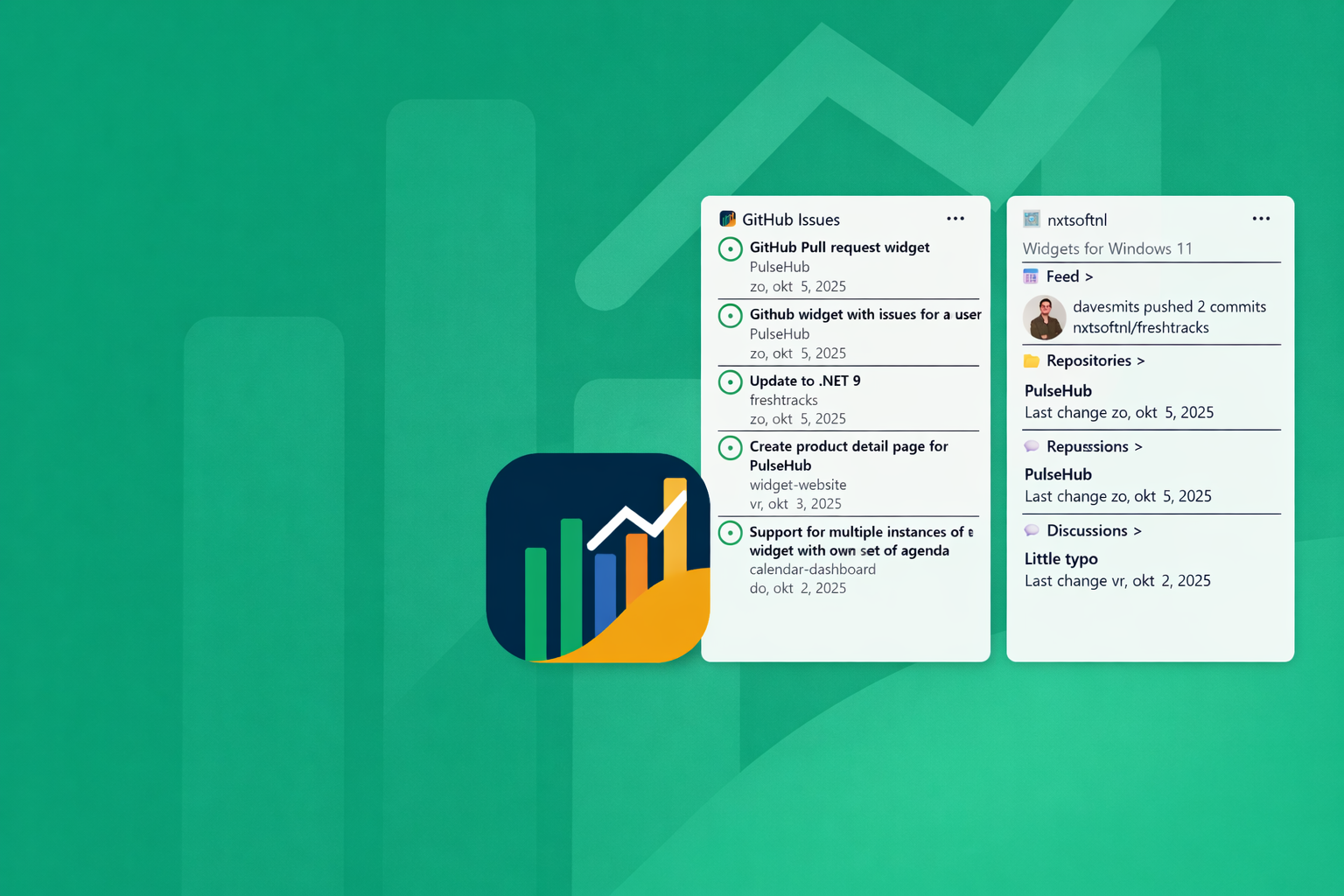
Use the Windows 11 Widget Board to Stay on Top of GitHub with PulseHub
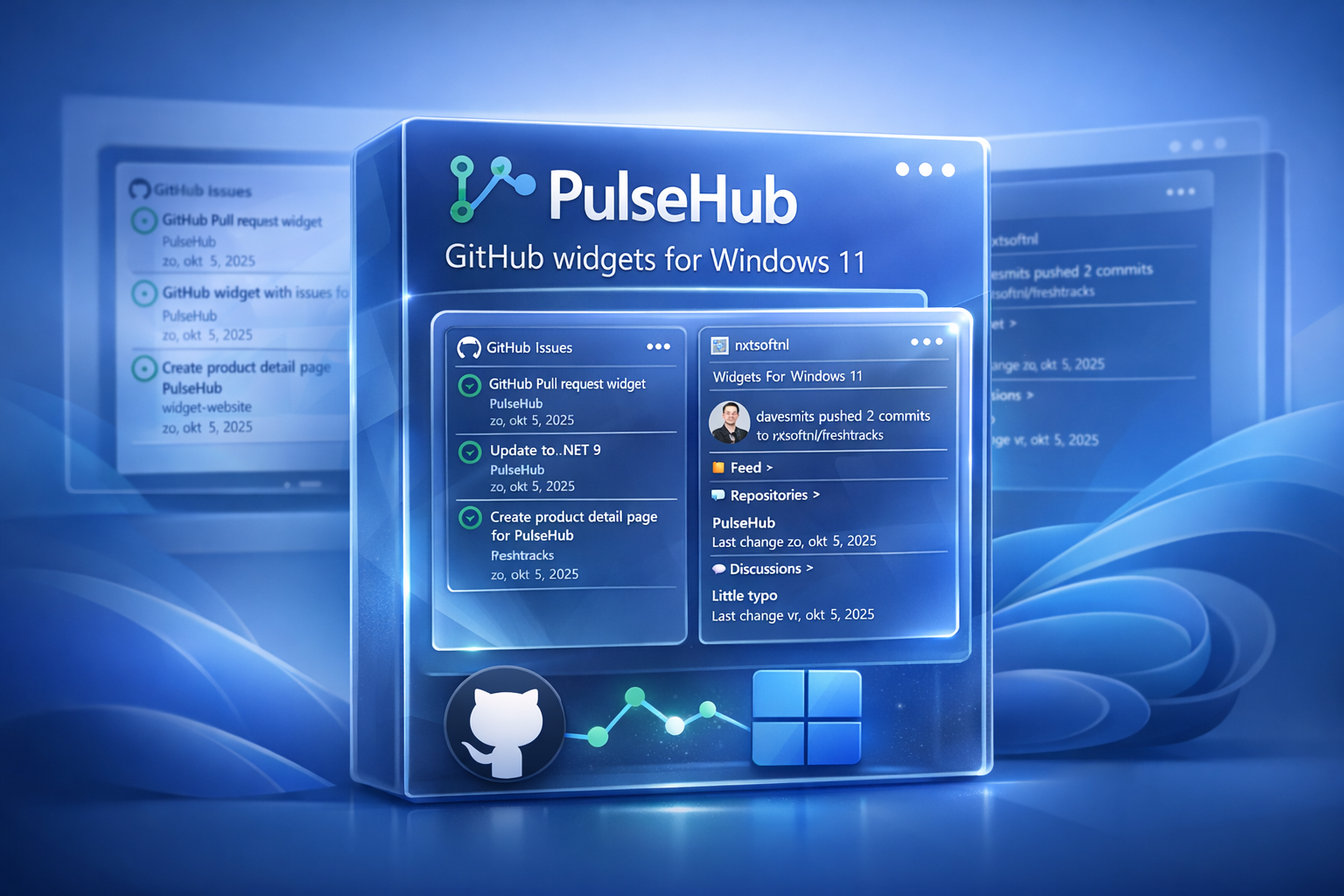
Developers lose a surprising amount of time to tiny context switches. You are coding, then checking GitHub. Back to the IDE, then back to pull requests. Then issues. Then organization activity. It is not hard work, but it breaks flow.
Windows 11’s Widget Board offers a better pattern for this kind of lightweight visibility. Microsoft positions widgets as a way to surface the most-needed information and quick actions directly in the Widgets Board, instead of replacing full apps or websites. The board is built into Windows 11 and can be opened from the taskbar or with Win + W.
That is exactly where PulseHub fits in.
PulseHub is a Windows widget app designed to bring GitHub activity into the Windows 11 Widget Board. According to its product page, it gives you at-a-glance widgets for Issues, Pull Requests, and Organization activity, with support for multiple GitHub accounts and multiple widget instances using different filters.
Why this matters for developers
Most GitHub information does not require a full browser session. A lot of the time, you only need quick answers to questions like:
Which pull requests need my review? Which issues were assigned to me? What is happening inside a team or organization right now? Did something change that I should look at?
That is the kind of “glanceable” experience Windows widgets are meant for. Microsoft’s guidance for Windows widgets emphasizes frictionless access to timely information and quick actions, which makes GitHub status a strong use case for the Widget Board.
PulseHub turns that into something practical for everyday engineering work.
What PulseHub shows on the Windows 11 Widget Board
PulseHub includes three main widget types.
1. Issues widget
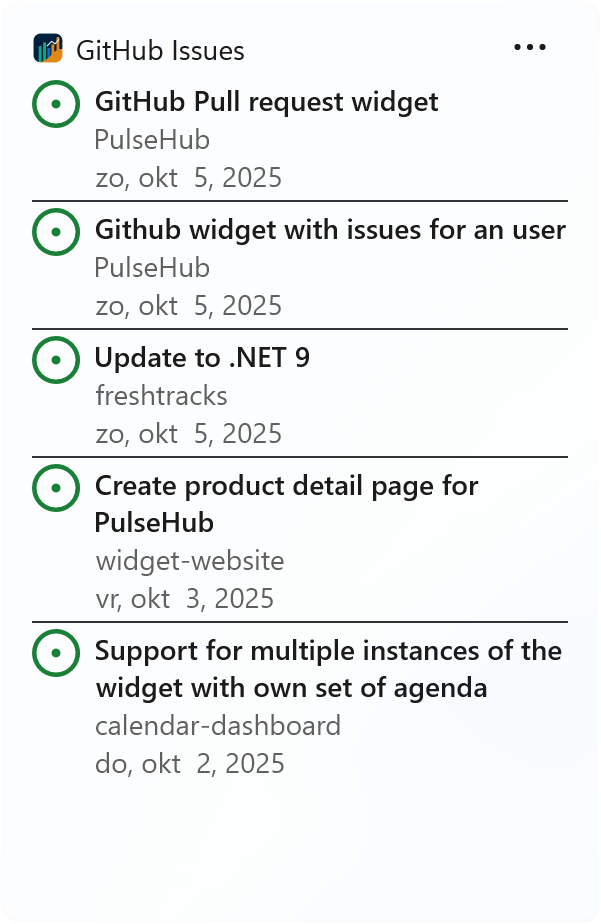
The Issues widget is built for the work that usually slips between active coding sessions. PulseHub says you can filter issues by:
- created
- assigned
- mentioned
- activity
It also supports placing the widget multiple times with different filters, and clicking an issue opens it directly in your browser.
That means one developer could pin:
- assigned issues for today
- mentioned issues for follow-up
- recently active issues in a key repository
Instead of searching GitHub manually, the board becomes your passive inbox.
2. Pull Requests widget
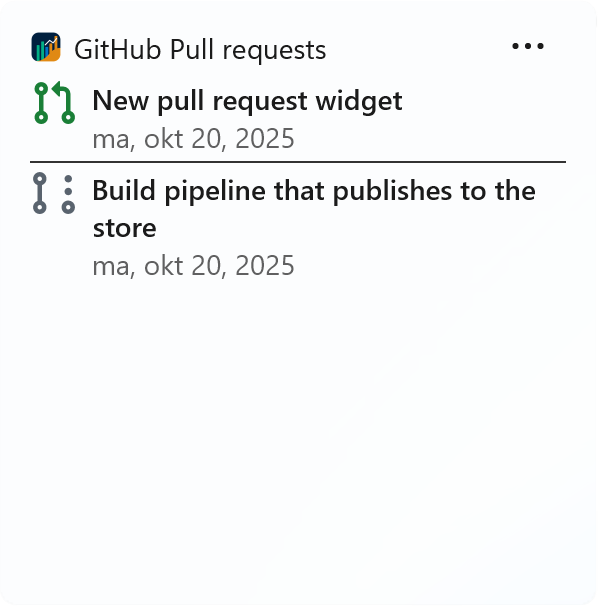
For many teams, pull requests are where most interruptions happen. PulseHub’s Pull Requests widget can show PRs that are:
- created by you
- assigned to you
- mentioning you
- requesting your review
The widget also lets you open a PR directly in the browser, and PulseHub says you can add multiple widgets for different repositories or filters.
This is useful because review work is often urgent but small. You do not need a full dashboard every minute. You just need a visible signal that tells you, “there is a review request waiting.”
3. Organization widget
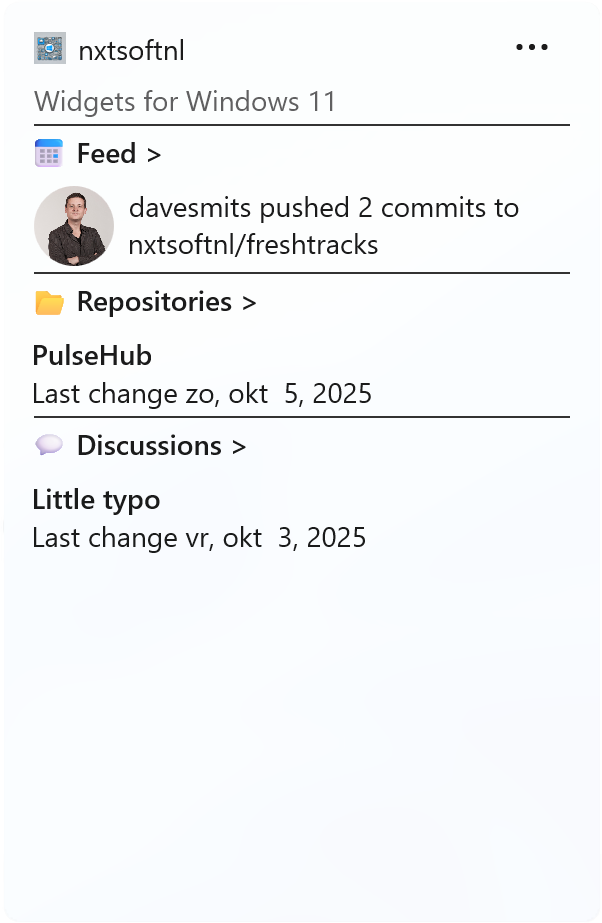
The Organization widget is aimed at team awareness. PulseHub describes it as a snapshot of organization activity, including trending repositories, recent events, and discussions. It can be configured for a specific organization, and you can use multiple widgets to monitor different organizations or teams.
For engineering leads, platform teams, or developers working across several GitHub organizations, that makes the Widget Board more than a personal task list. It becomes a lightweight activity surface for the whole team.
Can PulseHub give you “all GitHub information”?
Not literally everything, and that is probably a good thing.
PulseHub is not trying to replace GitHub itself. The product page focuses on the most useful day-to-day signals: issues, pull requests, and organization activity. Microsoft’s own Windows widgets guidance also makes clear that widgets are meant to expose high-value information at a glance, not reproduce a full application experience.
So the better framing is this:
PulseHub gives you the GitHub information you most often need without forcing you to open GitHub first.
That distinction matters. Developers do not need every screen on the Widget Board. They need the right signals at the right time.
A practical setup for developers
One of the most useful details on the PulseHub page is that the widgets can be added multiple times with different filters or organizations.
A strong setup could look like this:
For individual contributors
Use one Issues widget for assigned issues, one Pull Requests widget for review requests, and a second Pull Requests widget for PRs you created. That gives you a quick picture of both your delivery work and your review obligations.
For tech leads
Use an Organization widget for team-wide activity, plus a Pull Requests widget focused on review requests. This helps you see both local work and broader movement across the org.
For consultants or developers with multiple GitHub identities
PulseHub explicitly supports multiple GitHub accounts, so you can keep personal, client, and company work separated while still monitoring them from the same Widget Board.
How to get started
PulseHub’s setup flow is intentionally simple. On its product page, the app describes the process as:
- Sign in with your GitHub account.
- Optionally add the app to the GitHub organizations you want to monitor.
- Open the Windows Widget Board.
- Click the + button to add one of the PulseHub widgets.
- Place and resize the widget on the board.
That fits naturally with how the Widgets Board works in Windows 11, where users can discover, pin, arrange, resize, and customize widgets.
Where the Windows 11 Widget Board really helps
The key advantage is not raw data. It is reduced interruption.
PulseHub’s own description emphasizes reduced tab-hopping and a focus-friendly design. That lines up with what many developers already know from experience: checking status is necessary, but hunting for status is wasteful.
By moving GitHub signals into the Widget Board, you get a middle layer between “ignore GitHub completely” and “keep GitHub open all day.” That middle layer is often exactly what people need to stay responsive without destroying concentration.
Final thoughts
The Windows 11 Widget Board works best when it shows information that is important, timely, and lightweight. GitHub activity checks all three boxes. Microsoft designed widgets for quick access to relevant information and actions, and PulseHub applies that model to software development work.
For developers, this means you can turn the Widget Board into a quiet command surface for your GitHub workflow:
- issues you need to act on
- pull requests you need to review
- organization activity you want to watch
PulseHub will not replace GitHub, and it should not. What it can do is make GitHub easier to track without constantly pulling you out of your flow. And for most teams, that is the real productivity win.
Relevant widgets

PulseHub
Stay effortlessly in sync with your development workflow—right from your Windows 11 dashboard.