Meet Always On Widget Keep your PC awake, at a glance
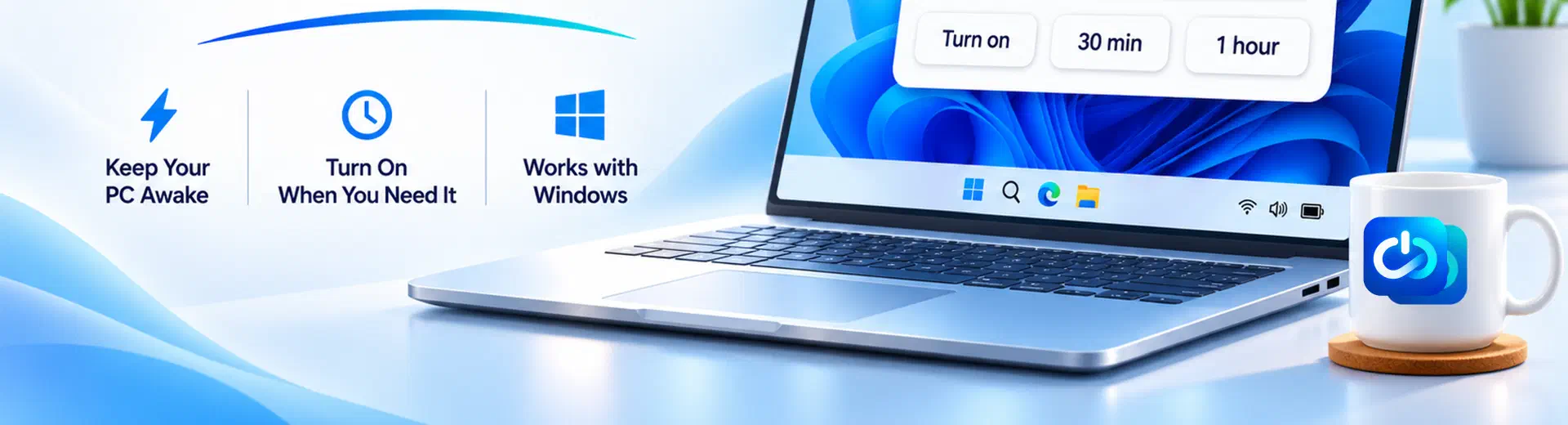
Meet Always On Widget: keep your PC awake from the Widgets Board
Need your PC to stay awake while a download finishes, during a presentation, or while a long-running task is underway? Always On Widget gives you a simple way to control your PC’s sleep behavior from the Windows 11 Widgets Board.
Keep control close at hand
Instead of opening Windows settings whenever you need to keep your computer awake, use the Always On widget to check its status and switch sleep prevention on or off from your Widgets Board.
Choose a 30-minute timer, a one-hour timer, or leave Always On enabled until you turn it off yourself. When you disable it, the app returns to your normal Windows power settings.
Made for the moments you need it
Always On can be useful when you’re:
- Waiting for a large download or file transfer to finish.
- Giving a presentation or demonstration.
- Running a longer process or background task.
- Temporarily keeping your PC awake for another reason.
It’s a focused utility: turn it on when you need it, then turn it off when you’re done.
Get started
Install Always On Widget from the Microsoft Store, add its widget to your Windows 11 Widgets Board, and choose the control or timer that suits the moment.
Relevant widgets

Always On Widget
Keep your Windows PC awake with one click. Prevent unwanted sleep, set flexible timers, and control everything from your Windows 11 Widgets Board.