GlanceRSS Introduces Custom Widget Templates
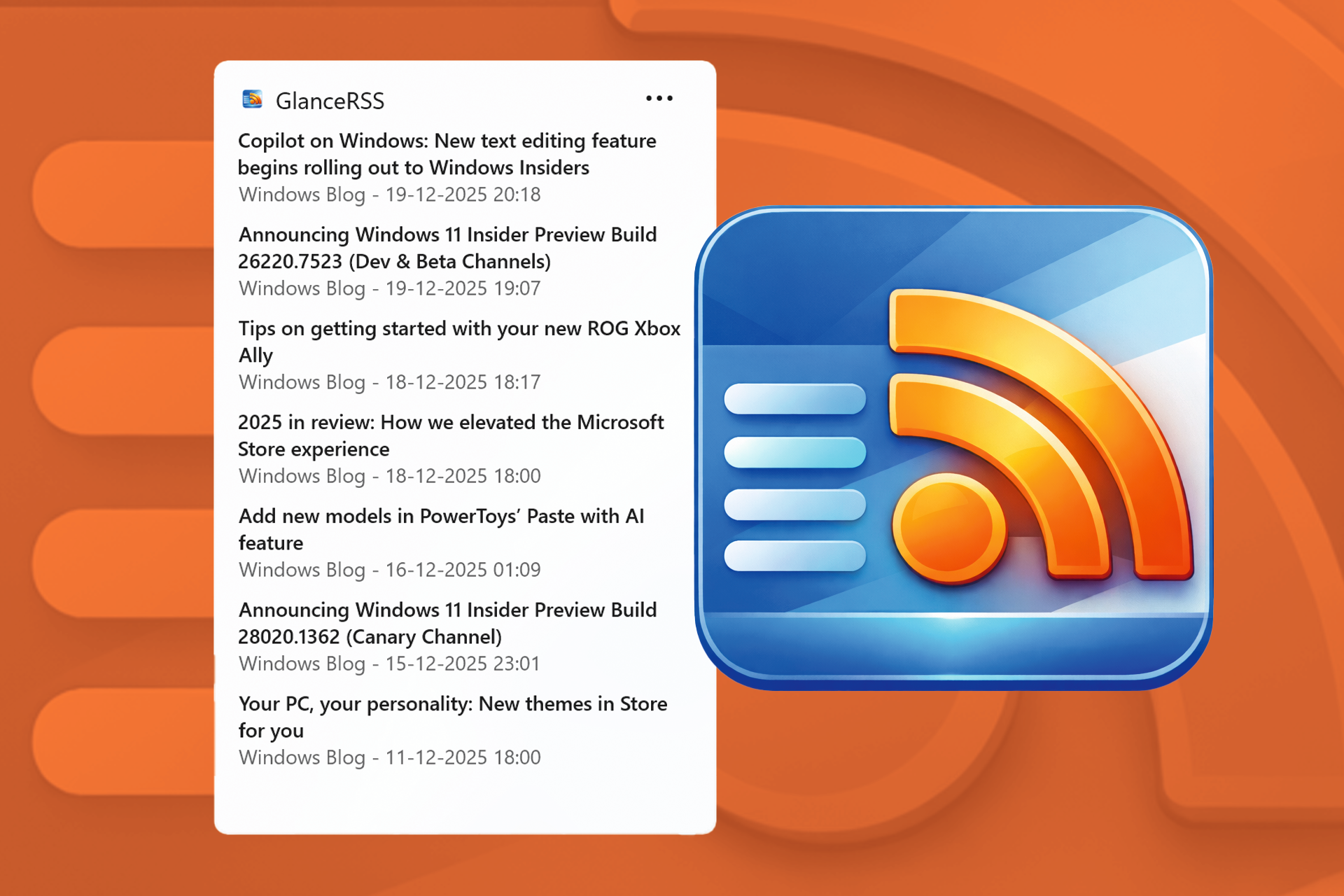
GlanceRSS Introduces Custom Widget Templates
GlanceRSS just became a lot more flexible. You can now customize how your RSS feeds appear with multiple widget templates, making it easier to create a feed experience that matches the content you care about most.
Whether you prefer a clean text-focused layout or a more visual feed with featured images, GlanceRSS now gives you options.
Available Templates
Title & Description
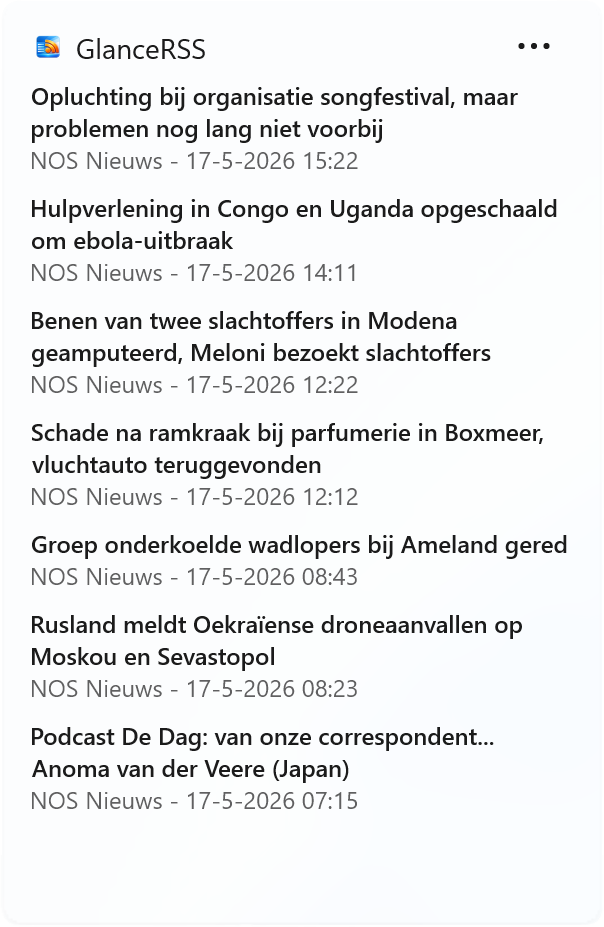
A simple and compact layout that focuses on the article title and summary. Perfect for quickly scanning news and updates.
Hero Image, Title & Description
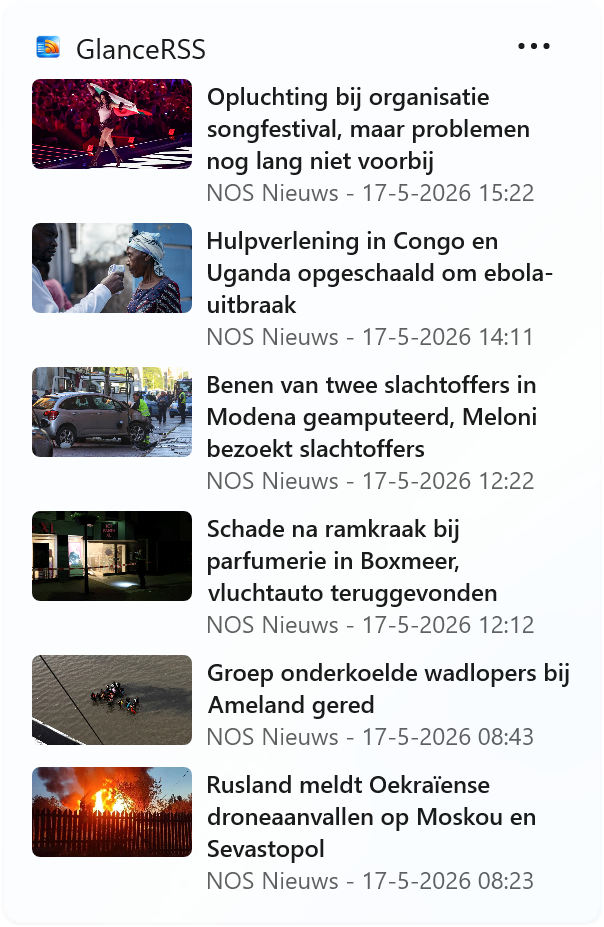
A more visual template that displays a large featured image alongside the article title and description. Great for blogs, media sites, and visual content feeds.
How to Select a Template
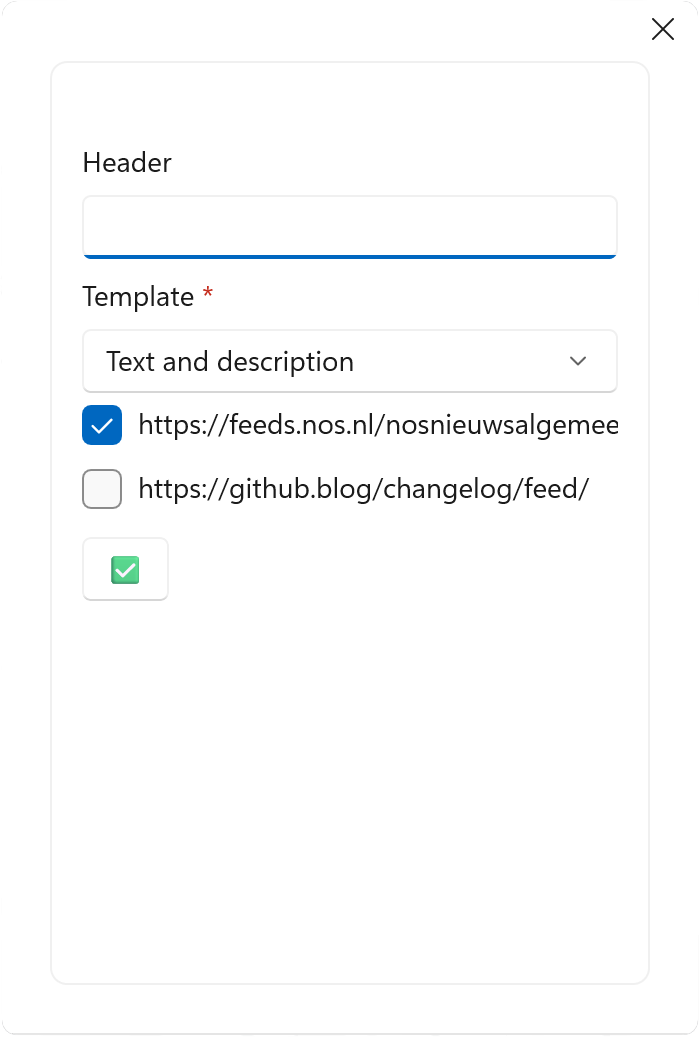
Changing templates is quick and easy:
Add the GlanceRSS widget to your widget board.
Click the three dots on the widget.
Select Customize.
In the customization menu, you can:
- Choose the template you want to use
- Set a custom title for the widget
- Select which RSS feeds should appear in that widget instance
Press Save and the widget will instantly update with your selected template.
Build Dedicated Widgets for Every Topic
One of the best parts of the new template system is that every widget instance is fully independent.
That means you can:
- Use different templates for different widgets
- Follow different RSS feeds in each widget
- Create dedicated widgets for topics like tech, gaming, finance, sports, or personal blogs
This makes it easy to organize your dashboard exactly the way you want.
Have an Idea for a New Template?
We’re always looking for ways to improve GlanceRSS. If you have an idea for a template you’d like to see, or a layout that would improve your reading experience, reach out and let us know.
Your feedback helps shape future updates.
Relevant widgets

GlanceRSS
Bring your news closer — right to your Widgets Board.