Best features of Calendar Dashboard
Best Features of Calendar Dashboard
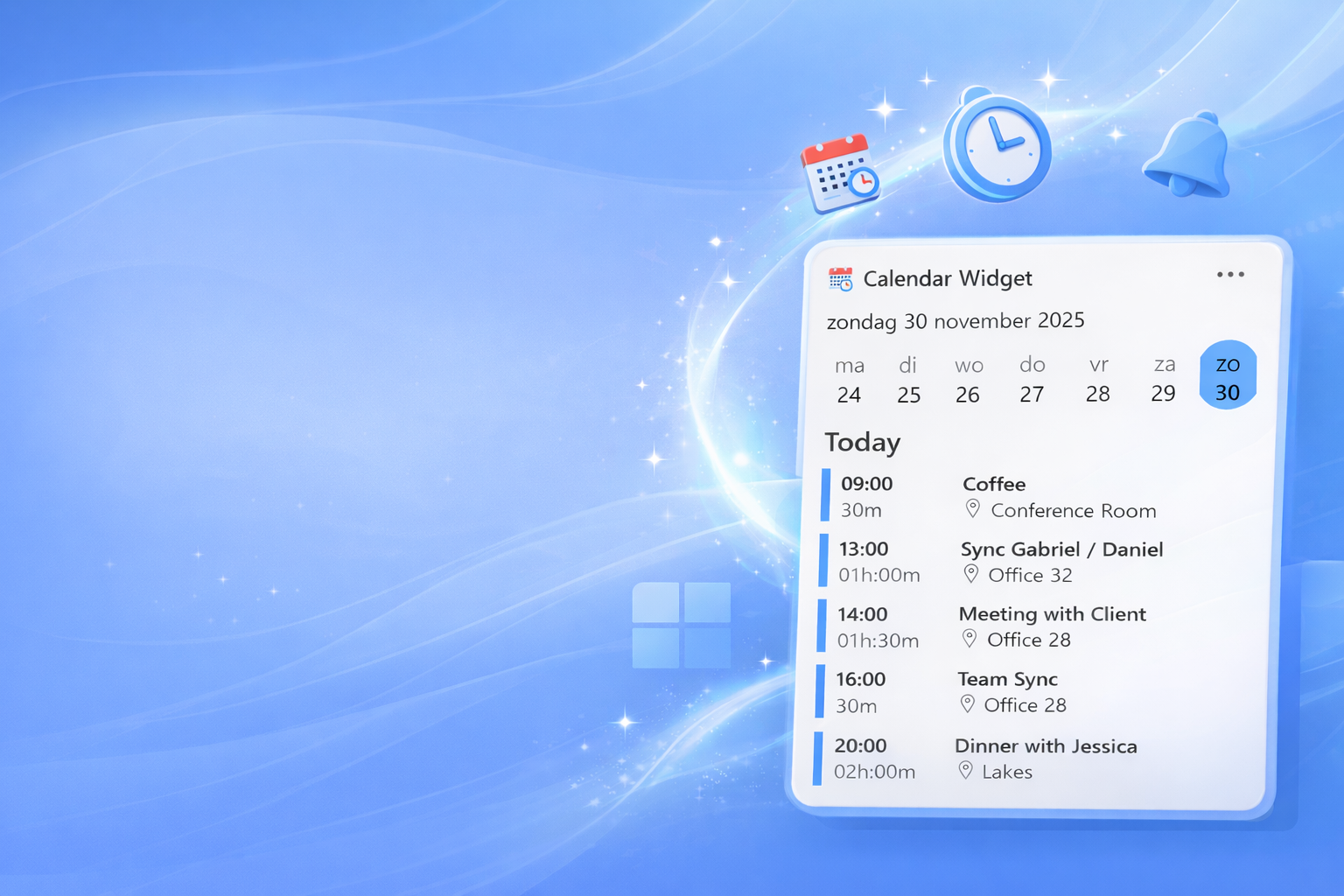
Calendar Dashboard brings your calendar to the Windows widget board so you can see upcoming events at a glance without opening a full app. It integrates with Outlook.com, Microsoft 365, and Google Calendar, supports personal and organizational accounts, and lets you add multiple widget instances to show different calendars side by side.
Key Features
Unified Calendar View — merges events from Outlook, Microsoft 365, and Google so everything appears in one place.
Instant Meeting Join — click any event to launch the meeting link directly from the widget.
Customizable Sizes — choose small, medium, or large widget layouts to fit your widget board and workflow.
Light and Dark Theme Support — adapts to your Windows theme for readability and visual consistency.
Multiple Accounts and Instances — place the widget multiple times to show different accounts or calendars simultaneously.
The Two Widgets
Agenda Widget
What it does
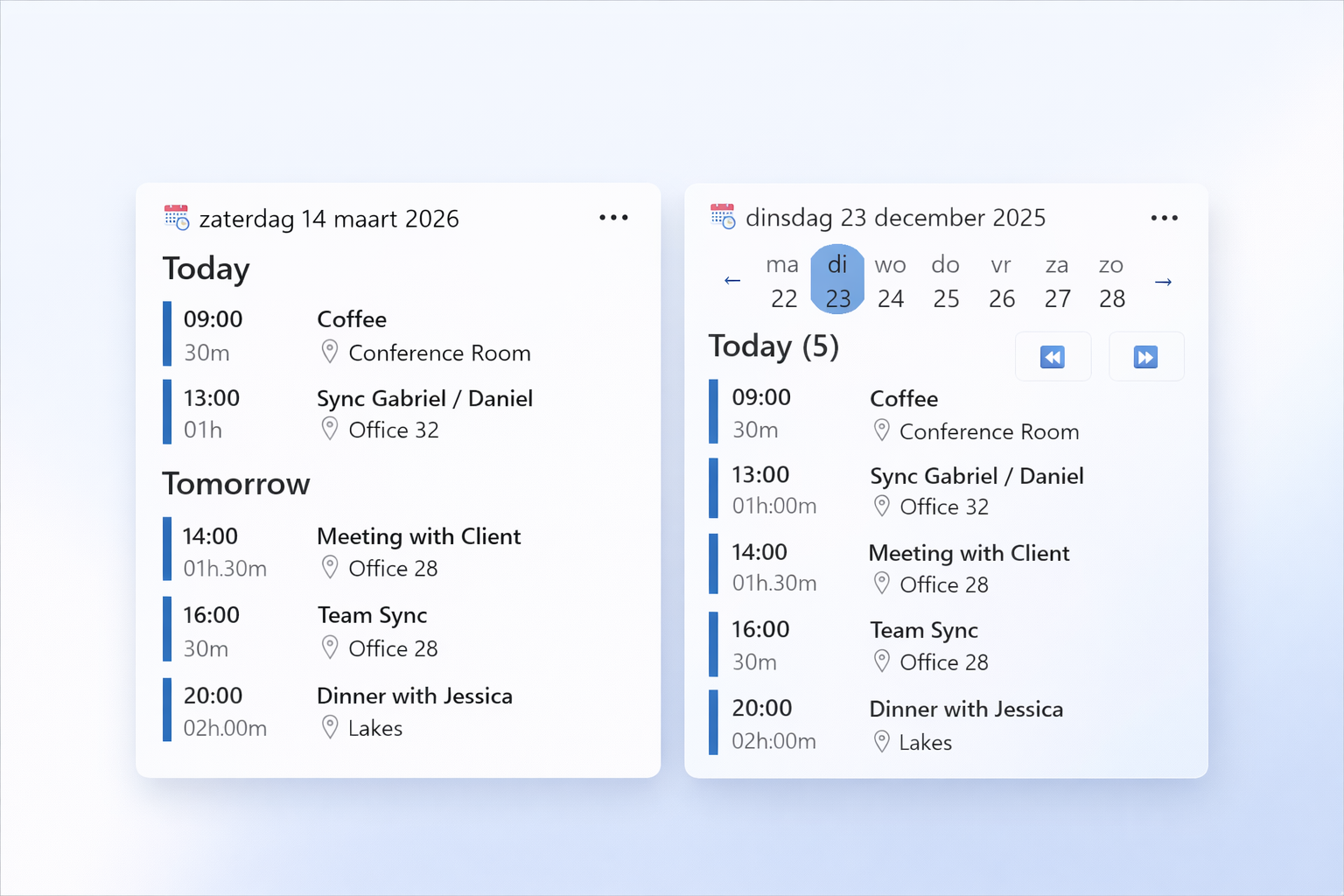
The Agenda widget gives a compact, day-by-day list of upcoming appointments so you can scan what’s next in seconds. It’s ideal for users who prefer a linear, list-style view of events.
Why it’s useful:
- Quick glance at upcoming appointments.
- Multiple placements let you show different accounts or calendars on the same board.
- One-click join for online meetings directly from the event entry.
Calendar Widget
What it does
The Calendar widget shows a week view you can click through to inspect appointments across days. It’s designed for users who want a spatial, week-oriented perspective rather than a list.
Why it’s useful:
- Week navigation makes it easy to scan availability and plan ahead.
- Multiple placements support separate views for work and personal calendars.
- Direct meeting access from any event in the week view.
How to Get Started
Sign in with your Outlook, Microsoft 365, or Google account. The widget supports personal and organizational accounts; administrators must allow the app for some organizational setups.
Open the Windows widget board and click the + button to add a new widget.
Select Calendar Dashboard and choose the size that fits your layout.
Add multiple instances if you want separate views for different accounts or calendars.
Practical Use Cases and Tips
Work and Personal Separation: Add one widget for your work Microsoft 365 calendar and another for your personal Google Calendar to avoid context switching.
Meeting-First Workflow: Keep a medium or large Agenda widget visible during heavy meeting days to jump into calls with a single click.
Weekly Planning: Use the Calendar widget at the start of the week to block focus time and spot scheduling conflicts quickly.
Relevant widgets

Calendar Dashboard
Calendar Dashboard is a simple and convenient app that lets you view your Outlook or Office 365 calendar events on your Windows 11 Widget Board.