Best Windows 11 Widgets
Best Windows 11 Widgets
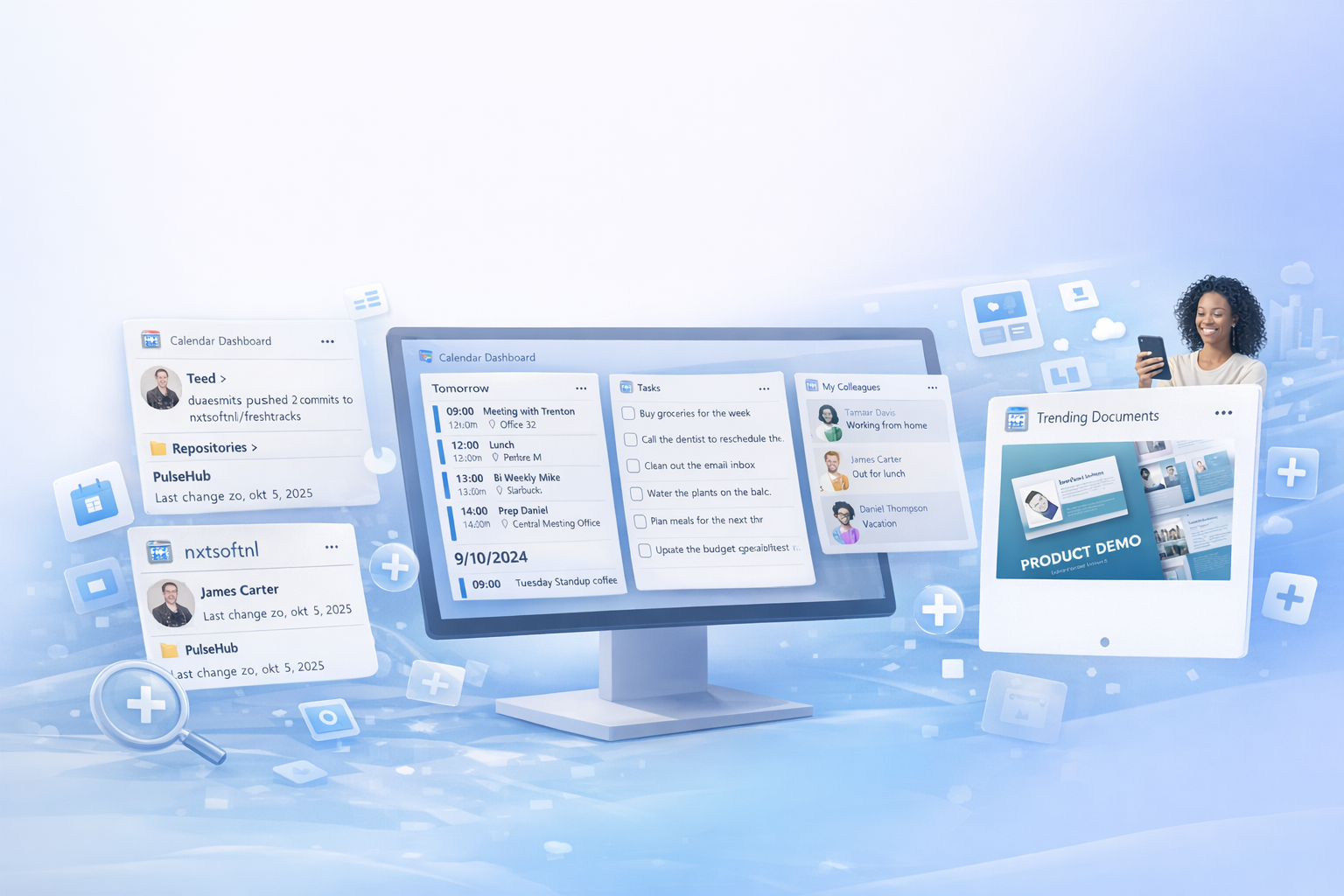
Windows 11 widgets are most useful when they stay simple. The Widgets board is not meant to replace your desktop, your browser, or your favorite productivity app. It works best as a quick dashboard: press Windows + W, glance at what matters, and get back to what you were doing.
That is also why this list focuses only on widgets that make sense inside the native Windows 11 Widgets board. It does not include separate desktop widget ecosystems such as Widget Launcher, Smart Widgets, or Widget Pro. Those tools have their own place, but they are a different category.
If you want a clean, useful Widgets board, these are the five widgets worth starting with.
1. Calendar Dashboard
Calendar Dashboard is the best place to start because your calendar is one of the most useful things to have one shortcut away. A good calendar widget helps you see what is coming up without opening a full calendar app or browser tab.
Why it’s good: it gives your day structure at a glance. You can quickly check your next meeting, appointment, deadline, or personal event from the Widgets board. That makes it useful during workdays, study sessions, and busy personal schedules.
Calendar Dashboard is especially helpful because calendar information is naturally glanceable. You usually do not need a full app just to answer a simple question: “What is next?” A widget is the perfect format for that.
Best for: people with busy schedules, students, remote workers, freelancers, and anyone who wants a quick overview of the day.
Relevant widgets
Calendar Dashboard
Calendar Dashboard is a simple and convenient app that lets you view your Outlook or Office 365 calendar events on your Windows 11 Widget Board.
2. Email Widget
Email Widget is a strong choice because email is important, but also distracting. Opening your full inbox can easily turn into reading, sorting, replying, and losing focus. A widget gives you a lighter way to check whether something needs your attention.
Why it’s good: it lets you monitor your inbox without living in it. You can quickly see recent messages and decide whether anything is urgent enough to open your mail app. That makes it useful for staying informed while avoiding the productivity trap of constantly checking email.
The best thing about an email widget is that it creates distance. Instead of treating every new message as a reason to stop working, you can use the Widgets board as a quick filter.
Best for: office workers, freelancers, students, support roles, and anyone who wants inbox awareness without keeping email open all day.
Relevant widgets
Email Widget
Email Widget is a powerful and versatile app designed to enhance your Windows 11 experience by seamlessly integrating your email accounts into the new Windows 11 Widgetboard.
3. Task Sphere
Task Sphere is a useful widget for people who want lightweight task management inside the Windows 11 Widgets board. It gives you a quick way to keep track of things you need to do without switching into a full productivity system.
Why it’s good: tasks are most useful when they are visible. A hidden to-do list is easy to ignore, but a task widget can keep your priorities close. That makes Task Sphere a good fit for quick reminders, daily focus items, and simple personal workflows.
It works especially well when you keep it short. A widget is not the best place for a huge project plan. It is much better for the few things you actually want to finish today.
Best for: daily planning, personal productivity, students, freelancers, and people who prefer a simple task overview.
Relevant widgets
Task Sphere
Your Tasks, Always Within Reach.
4. GlanceRSS
GlanceRSS is one of the best widgets for people who still like RSS. Instead of relying on algorithmic news feeds or opening multiple websites, RSS gives you more control over what you follow.
Why it’s good: it makes updates intentional. You choose the feeds, sources, blogs, sites, or publications you care about, and GlanceRSS gives you a quick way to check them from the Widgets board. That makes it useful for staying informed without getting pulled into a noisy content feed.
This is especially valuable if you follow niche topics, professional blogs, product updates, developer news, industry publications, or independent writers. RSS may feel old-school, but for focused information tracking, it is still one of the best systems around.
Best for: news readers, developers, researchers, professionals, bloggers, and anyone who prefers curated sources over algorithmic feeds.
Relevant widgets
GlanceRSS
Bring your news closer — right to your Widgets Board.
5. Phone Link
Phone Link is a practical widget because it connects your phone and PC. If you work on a Windows computer for much of the day, picking up your phone for every notification can break your concentration.
Why it’s good: it reduces context switching. You can keep phone-related updates closer to your PC workflow and decide whether something needs attention without constantly unlocking your phone. That can make your workday feel smoother and less interrupted.
Phone Link is especially useful for people who use an Android phone with Windows. It turns the PC into a more connected workspace and makes the Widgets board feel more personal and useful.
Best for: Android users, people who work at a PC all day, remote workers, and anyone who wants fewer phone interruptions.
Which Widget Should You Install First?
For most people, the best starting point is Calendar Dashboard. Your schedule affects everything else you do, so having it in the Widgets board immediately makes Windows 11 more useful.
After that, add Email Widget if your inbox matters during the day, Task Sphere if you want a simple task overview, and GlanceRSS if you follow news or professional sources. Phone Link is the best choice if you want your phone and PC to feel more connected.
A good setup could look like this:
Calendar Dashboard for your schedule, Email Widget for inbox awareness, Task Sphere for today’s priorities, GlanceRSS for updates, and Phone Link for phone integration.
That gives you a balanced Widgets board: calendar, communication, tasks, information, and phone connectivity.