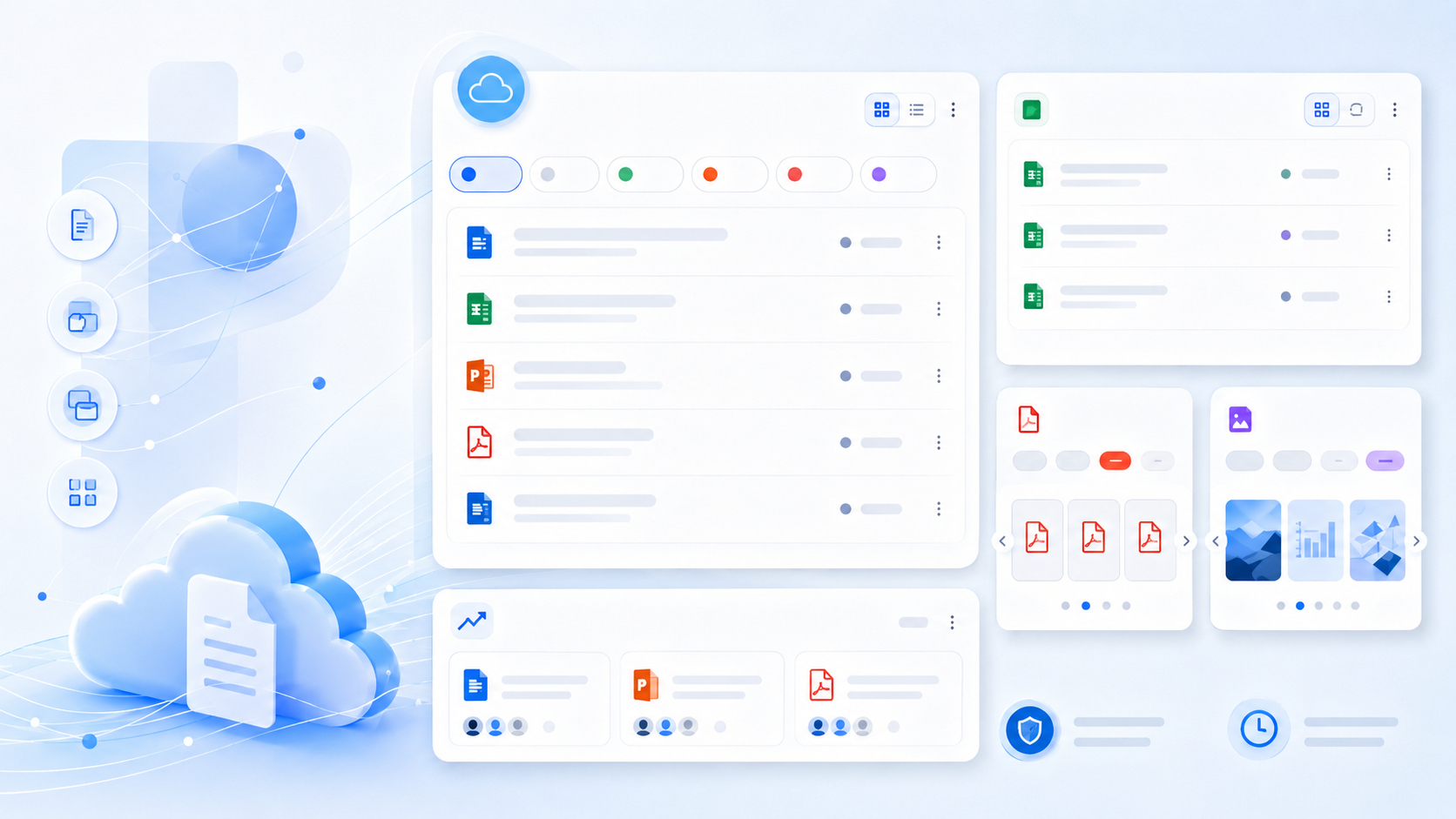
Your recent OneDrive files, always within reach.
Trending documents

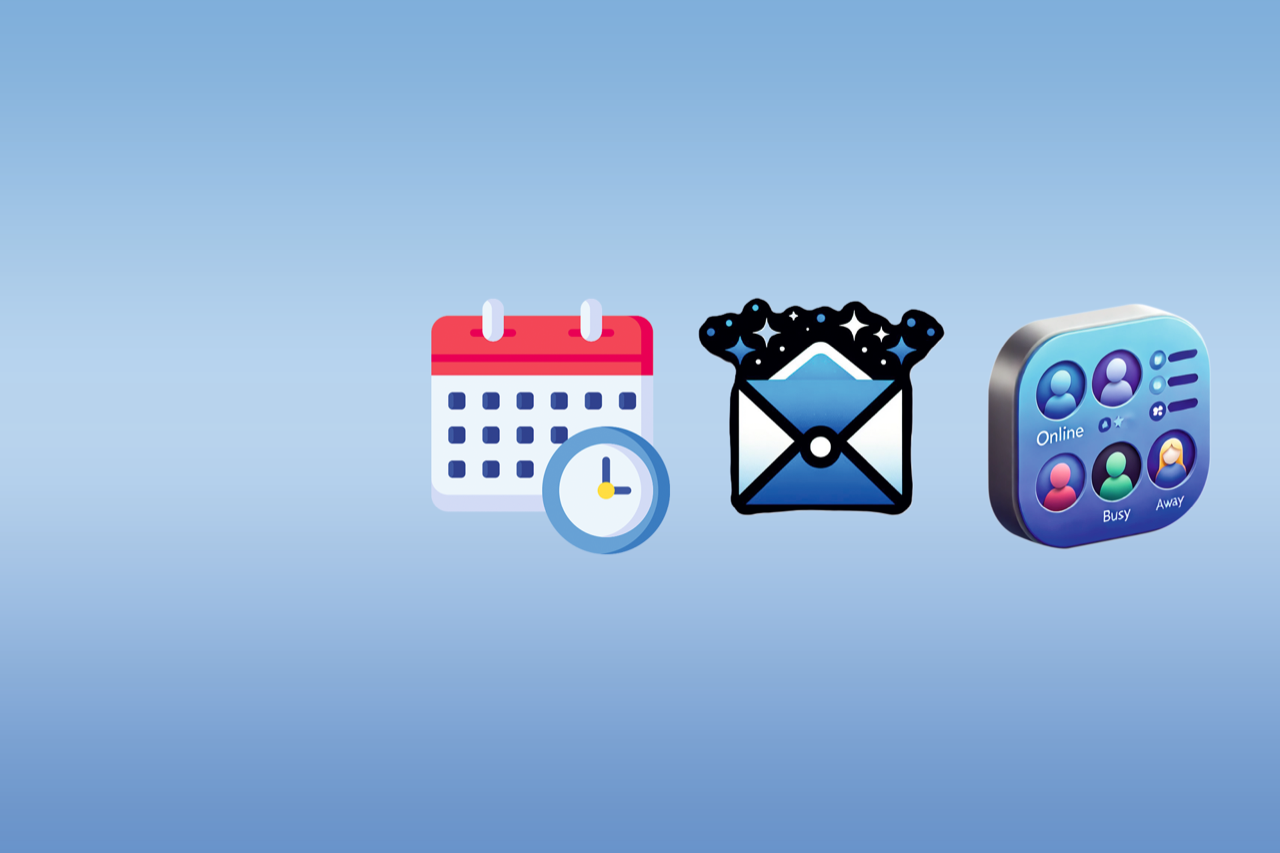
Widgets for productivity
Widgets that show information that matter to you. Boost your productivity.
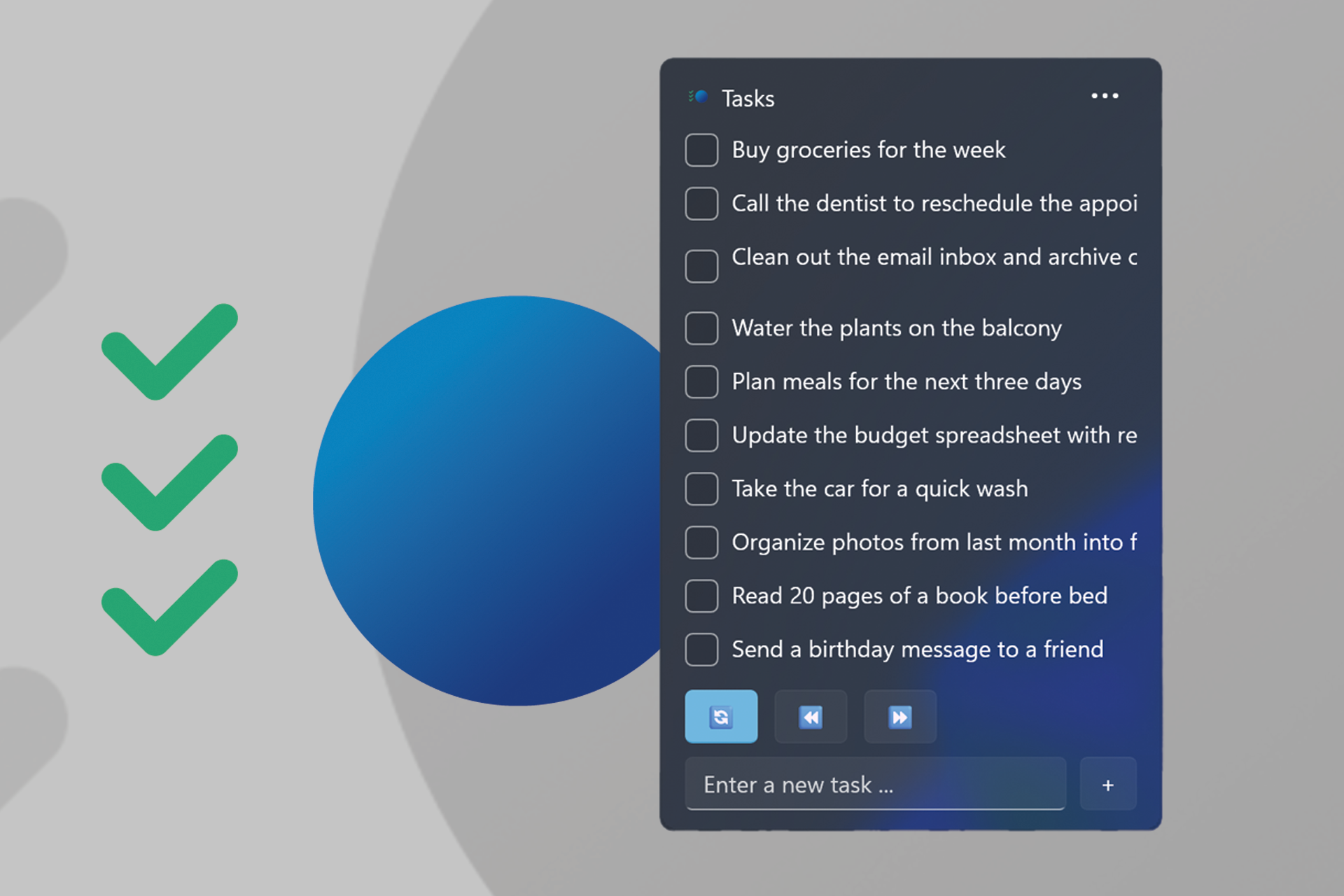
NEW: Task Sphere
Task Sphere
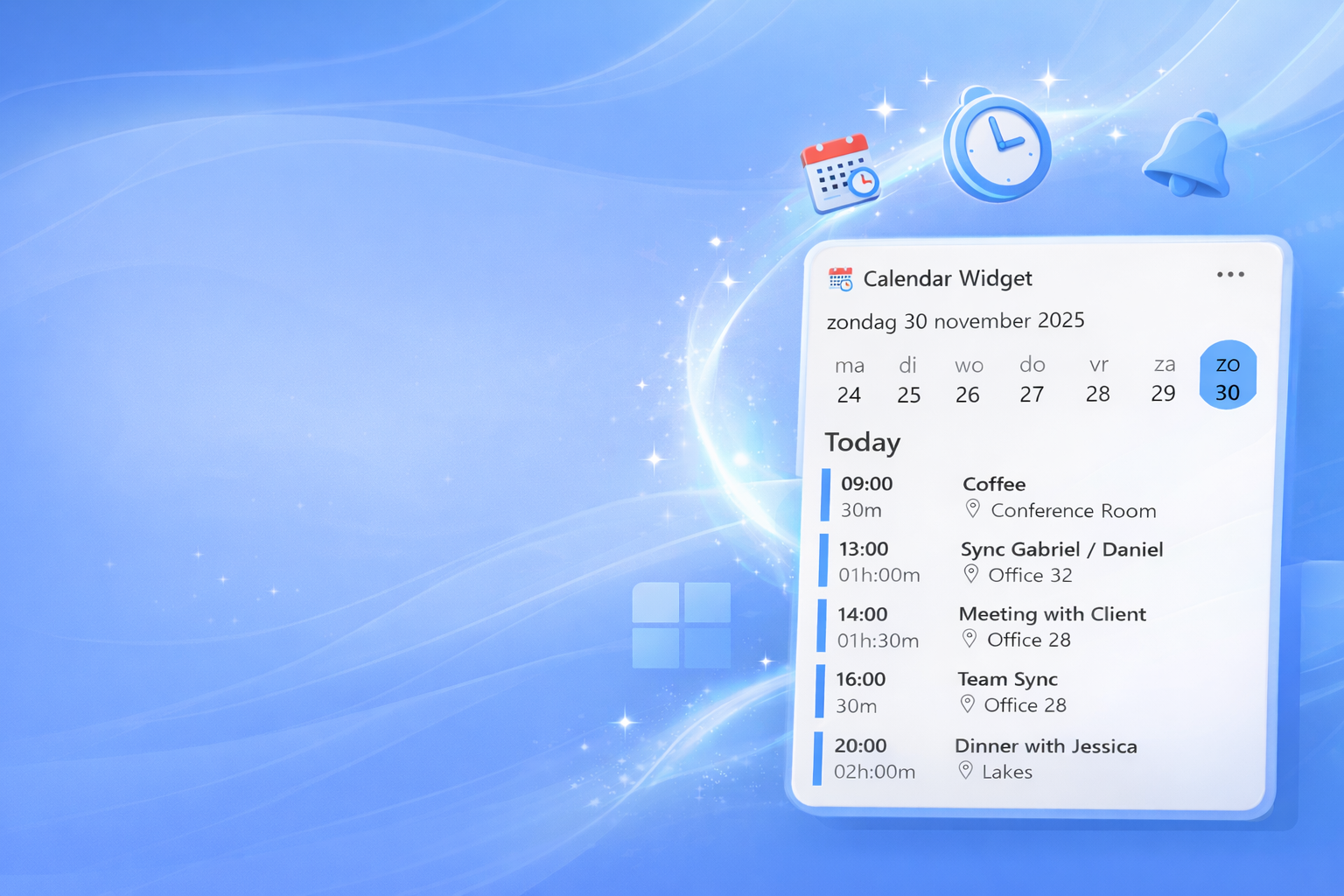
NEW WIDGET FOR CALENDAR DASHBOARD: Calendar
Calendar Dashboard
Stay up to date with widgets
Discover the best Widgets for Windows on this site — including GlanceRSS, PulseHub, Task Sphere and Calendar Dashboard. Our curated Windows 11 widgets deliver news, tasks, calendar events, email previews and live updates directly to your Widgets board and lock screen so you can stay informed at a glance.
Browse available widgets on the Widgets page and follow the Microsoft Store links on each product card to download and install. Learn how to add, remove and customize widgets on your Widgets board (press Windows key + W) to create a more productive, personalized desktop experience.
Plan out your day like a pro
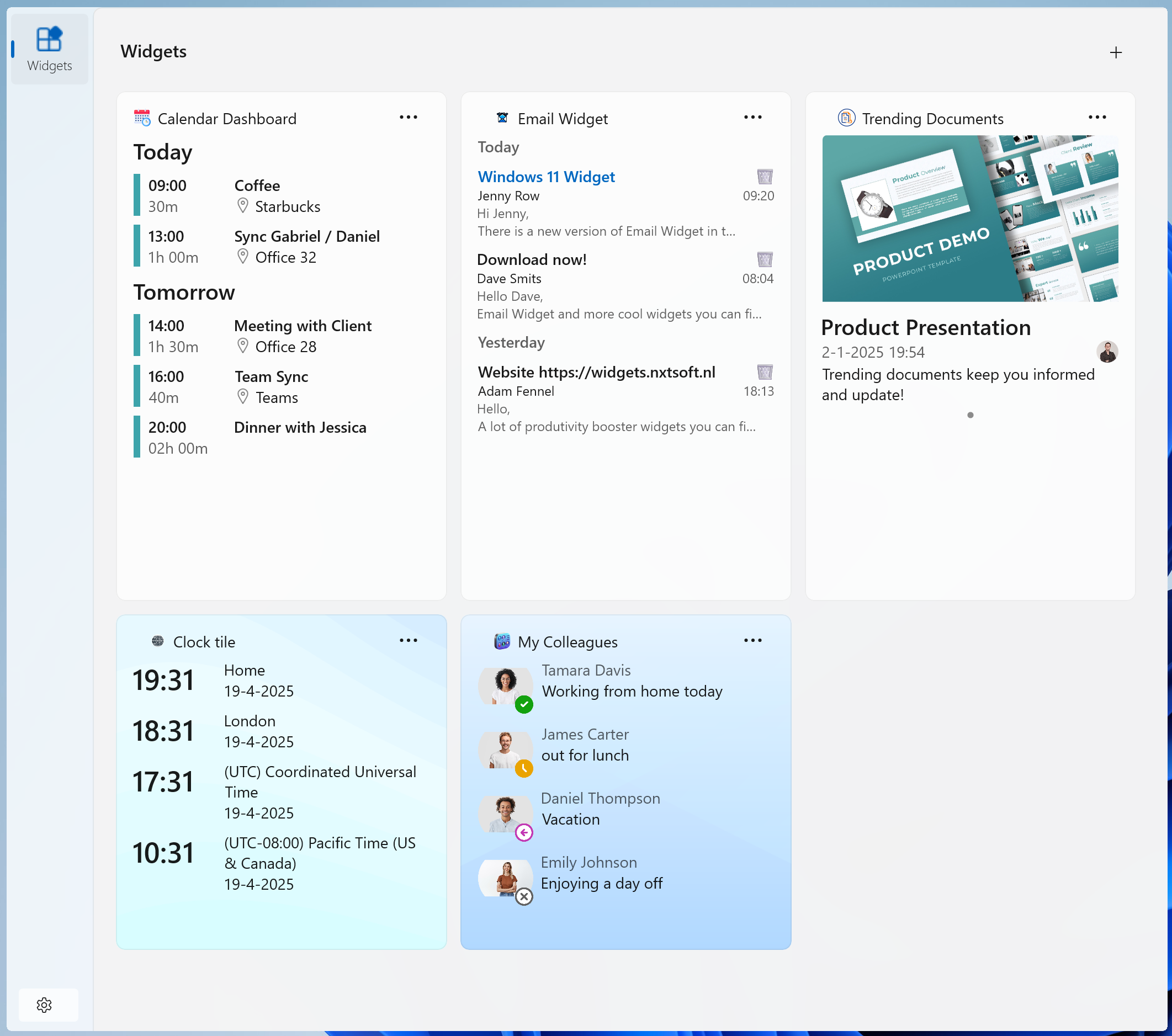
- The calendar widget shows your upcoming events and appointments.
- Email widget displays your latest emails, so you can quickly catch up on important messages.
- Online status of colleagues widget lets you see who is available for a quick chat or meeting.
- Documents widget shows your the files your colleagues are working on, always be informed
Widgets
Trending Documents
Stay Informed with Trending Documents in Your Workplace!
Calendar Dashboard
Calendar Dashboard is a simple and convenient app that lets you view your Outlook or Office 365 calendar events on your Windows 11 Widget Board.

Task Sphere
Your Tasks, Always Within Reach.
Latest News
PulseHub update: introducing the new Events widget
PulseHub is getting even better. This update adds a brand-new widget and improves one of the existing ones, making it easier to stay informed about the repositories, activity, and events that matter most to you.
Read articleGet started with Widgets for Windows
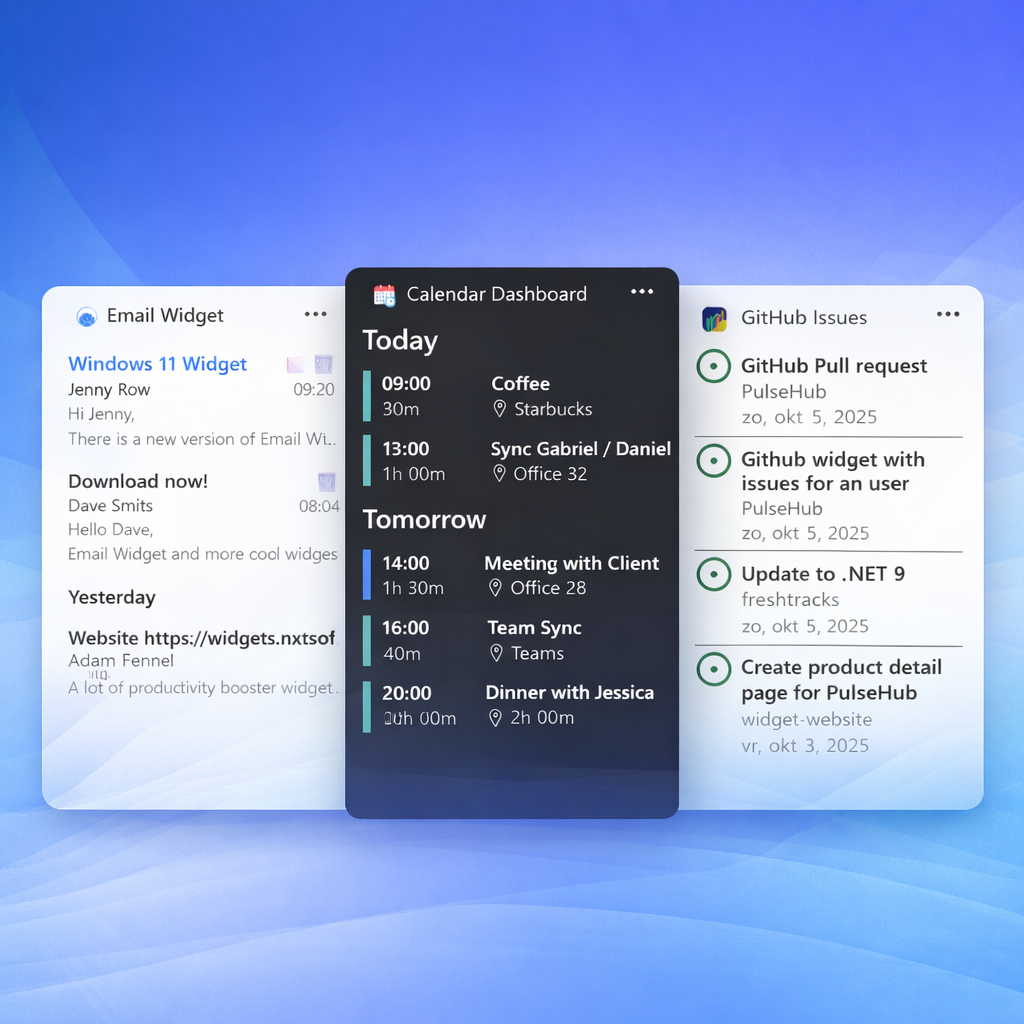
What are widgets
Explore powerful Widgets for Windows that surface live information—news, calendar events, tasks, email previews, weather and system alerts—directly on your Windows 11 Widgets board. Our featured widgets (GlanceRSS, PulseHub, Task Sphere, Calendar Dashboard) help you stay informed and focused without switching apps.
Learn how to add, customize and prioritize widgets (press Windows key + W) to create a personalized productivity setup. Visit the Widgets page to browse curated widgets, read feature details, and follow Microsoft Store links to download and install each widget.
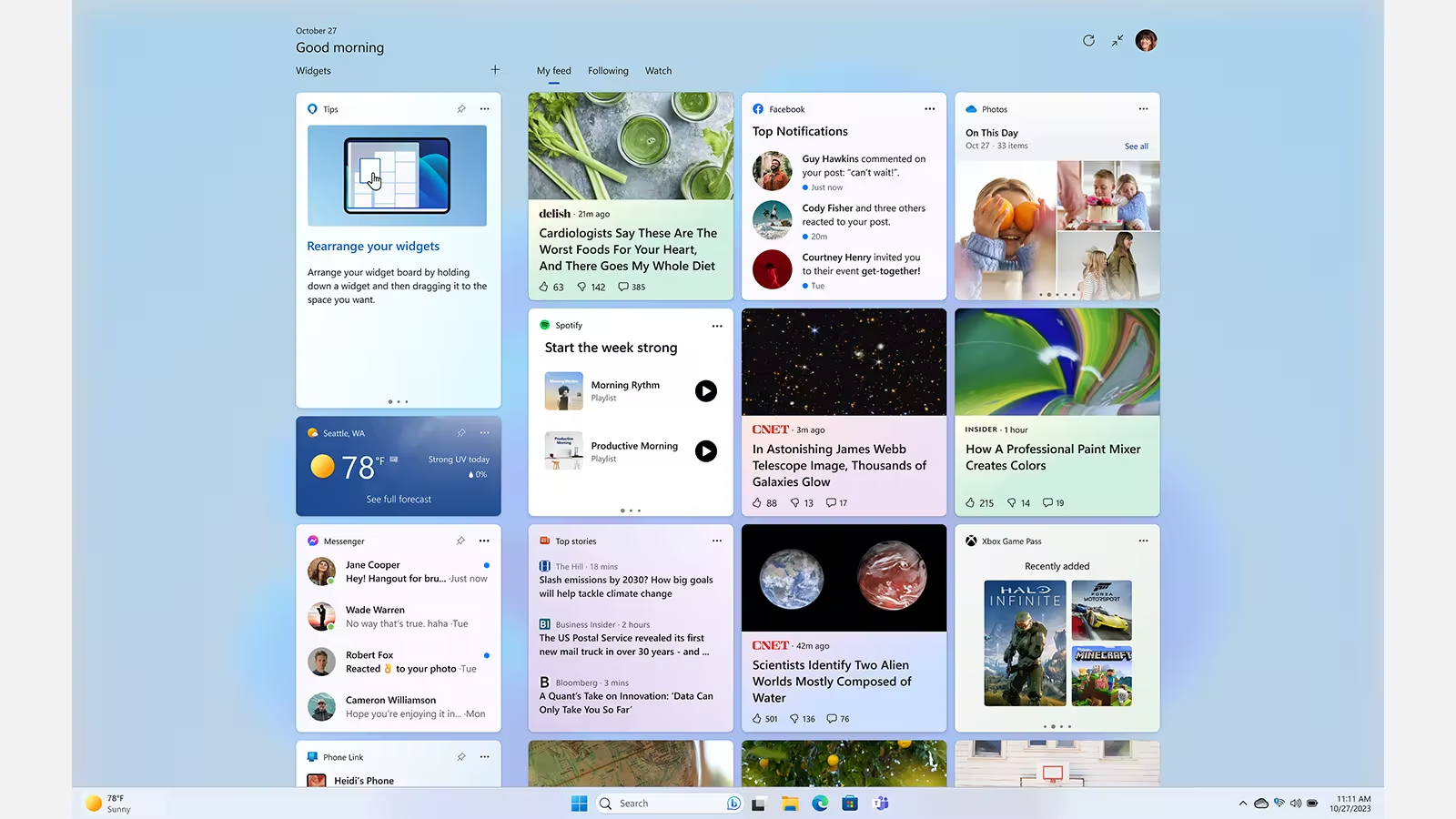
How to install widgets
Add and install Windows 11 widgets to your Widgets board quickly. Use built-in widgets or download curated widgets from our site and the Microsoft Store to enhance productivity with news, calendar events, tasks and more.
- Open the Widgets board by pressing Windows key + W or clicking the weather icon in the taskbar.
- Select Add widgets, then click the plus (+) icon next to any widget to add it to your board.
- For more widget choices, visit the Widgets page and follow the Microsoft Store links on each widget card to download and install from the Microsoft Store.
- Customize widget size, order and settings on your Widgets board to match your workflow.
NEW: Widgets now available on the lockscreen
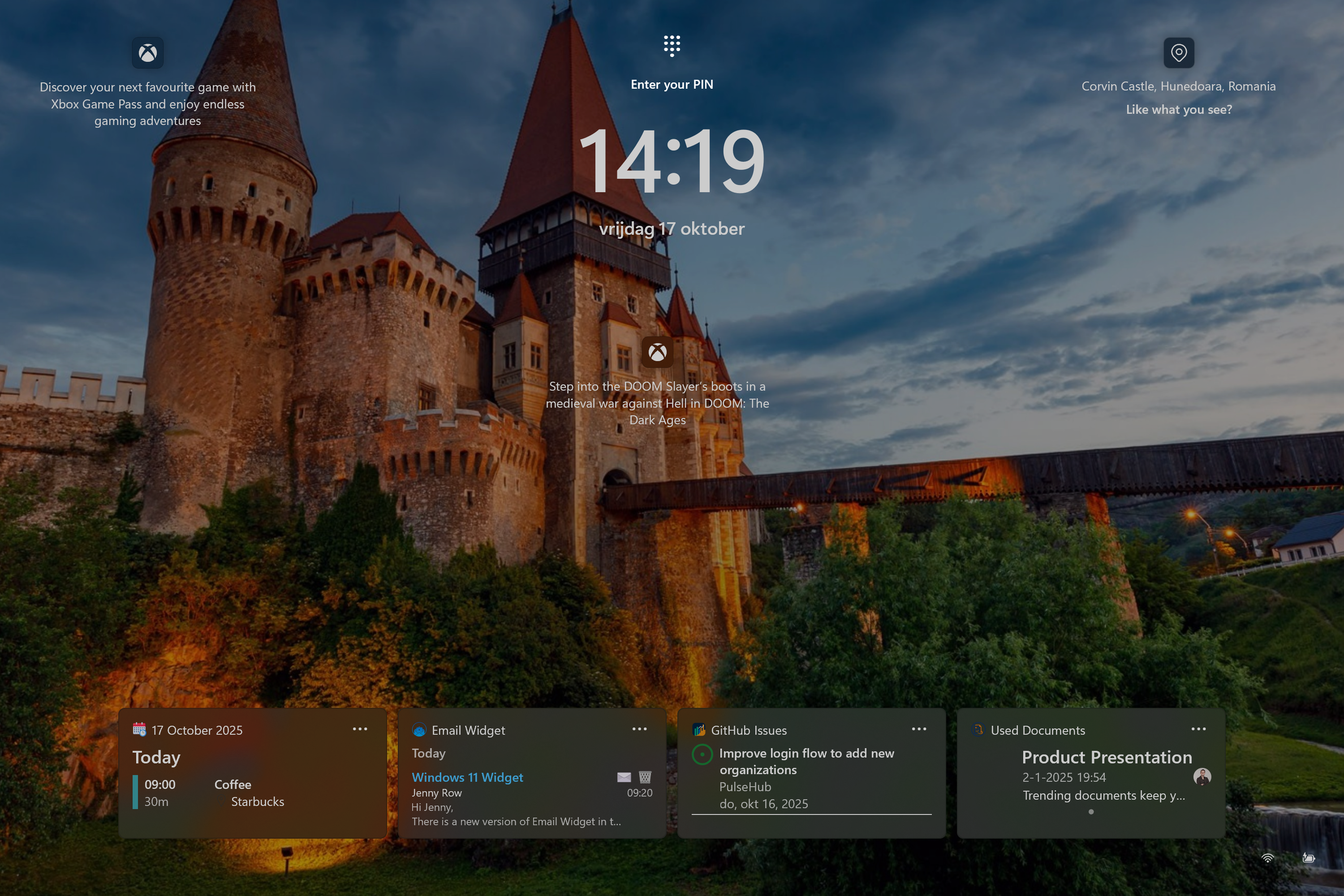
To add a widget to the lock screen:
- Open Settings and navigate to Personalization → Lock screen settings.
- Select the widgets you want to show on your lockscreen
- Widgets need to support the small size in order to be added to the lockscreen.
- Select up to four widgets.